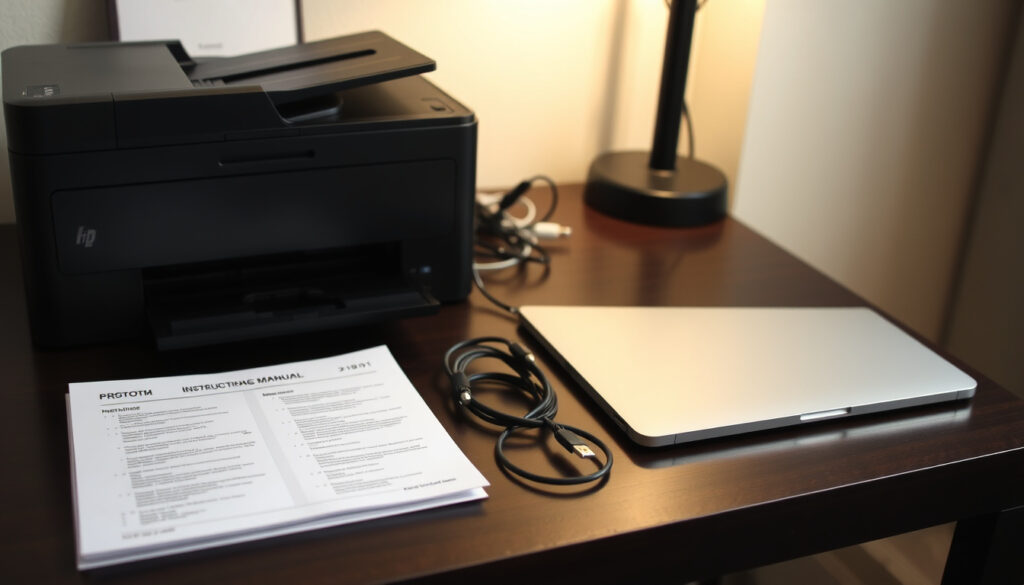
How to Set Up a Printer: Step-by-Step Guide
Few things test your patience quite like a new printer that refuses to cooperate, and even the typical 15–20 minute setup assumes everything goes smoothly. The essential steps for getting a printer working on Windows and macOS — whether connecting via USB or Wi‑Fi — will help you print that first page without the headache.
Average printer setup time: 15–20 minutes (HP Support) ·
Most common connection methods: USB, Wi-Fi, Ethernet ·
Primary requirement for wireless printers: Same Wi-Fi network as computer (CompAndSave)
Quick snapshot
- Remove all packaging materials (HP Support)
- Install ink/toner cartridges (HP Support)
- Load paper into the tray (HP Support)
- Connect power cable and turn on printer (HP Support)
- Connect printer to computer via USB or Wi-Fi (Microsoft Support)
- Download drivers from manufacturer website or use Windows Update (Microsoft Support)
- Run the setup wizard and follow prompts (Microsoft Support)
- Set printer as default device (Microsoft Support)
- Use printer control panel to find Wi-Fi settings (HP Support)
- Select your network and enter password (HP Support)
- Alternatively, press WPS button on router and printer (HP Support)
- Confirm the printer gets an IP address (Apple Support Community)
- Restart printer and computer (Apple Support Community)
- Check for driver updates (CompAndSave)
- Use Windows printer troubleshooter (Microsoft Support)
- Verify network connectivity between devices (Apple Support Community)
Four key facts quickly establish what you’re working with — the typical time investment, available connection types, the operating systems you’re likely using, and the brand-specific apps that can simplify setup.
| Fact | Details |
|---|---|
| Typical setup time | 15–20 minutes (HP Support) |
| Connection options | USB, Wi-Fi, Ethernet, Bluetooth (Microsoft Support) |
| Most used operating systems | Windows 10/11, macOS, Android, iOS (CompAndSave) |
| Printer brand apps | HP Smart, Canon IJ Printer Utility, Epson iPrint, Brother iPrint&Scan (HP Support) |
How to set up a printer step by step?
Whether you’re setting up a printer for the first time or switching to a new model, the core sequence remains the same. Most manufacturers recommend following the quick-start guide included in the box, but the steps below cover the universal process that works across major brands like HP, Canon, and Epson.
How to set up a printer for the first time?
- Unbox the printer and remove all tape and packaging materials (HP Support).
- Install the ink or toner cartridges by following the color‑coded slots (HP Support).
- Load paper into the input tray — usually letter or A4 size (HP Support).
- Connect the power cable and press the power button to turn on the printer (HP Support).
- Connect the printer to your computer using a USB cable or through Wi‑Fi (Microsoft Support).
- Install the printer driver — either from the manufacturer’s website or via Windows Update (Microsoft Support).
- Set the printer as your default device in your operating system’s printer settings (Microsoft Support).
- Print a test page to confirm everything works (CompAndSave).
Hardware setup takes under 20 minutes, but the real time sink is the software installation. Download drivers before you start to avoid waiting mid-setup.
TL;DR: For beginners, tackling hardware first and pre-loading drivers avoids the most common setup delays.
How to use a printer for the first time for beginners?
- After hardware setup, power on the printer and wait for it to initialize — this may take a minute (HP Support).
- Follow the on‑screen wizard (if present) to select language, time, and network preferences (HP Support).
- Load paper and run the automatic print head alignment if prompted (HP Support).
- Print a configuration page from the printer’s menu to confirm basic operation (CompAndSave).
- Open any document and press Ctrl+P (Windows) or Cmd+P (Mac) to print, selecting your printer from the dialog (Microsoft Support).
- If your printer brand offers a mobile app (e.g., HP Smart, Canon PRINT), install it for direct mobile printing (HP Support).
The pattern: beginners often skip the on‑screen wizard or forget to install the mobile app, both of which simplify long‑term use. Taking those extra two minutes during setup saves time later.
Why this matters: Following these steps in order minimizes the chance of missing a critical component — especially the driver installation, which is the most common cause of “printer not found” errors.
How do I setup a wireless printer?
Wireless setup is the most flexible method, but it depends on your printer being on the same Wi‑Fi network as your computer. Here’s how to get it done.
How do I manually connect my printer to Wi-Fi?
- Access the printer’s control panel and navigate to the Wi‑Fi or Network settings menu (HP Support).
- Select your home network name (SSID) from the list (HP Support).
- Enter the Wi‑Fi password using the printer’s on‑screen keyboard (HP Support).
- If your router supports WPS, press the WPS button on the router, then press the WPS button on the printer for a faster connection (HP Support).
- Wait for the printer to obtain an IP address — this confirms it’s connected to the network (Apple Support Community).
The catch: Manual Wi‑Fi entry can be tedious on printers with small screens, and a single character error in the password will fail. WPS is quicker but less secure, so use it only on trusted home networks.
How do I get my printer to recognize my Wi-Fi?
- Make sure the printer is within range of your Wi‑Fi router — thick walls or distance can cause weak signals (Apple Support Community).
- Check that the printer supports the same Wi‑Fi band (2.4 GHz or 5 GHz) as your network — many older printers only work on 2.4 GHz (HP Support).
- Restart both the printer and the router to clear temporary network glitches (Apple Support Community).
- If the printer’s network name still doesn’t appear, run a wireless setup wizard from the printer’s menu or use the manufacturer’s mobile app (HP Support).
The trade‑off: if the printer’s network list is empty, the issue is almost always a band mismatch or a router that hides the SSID. Switching to 2.4 GHz temporarily can help.
Does a wireless printer need to be connected to the router?
A wireless printer does not need a physical Ethernet cable to the router, but it must be connected to the same local Wi‑Fi network as the devices that will print to it. The printer communicates through the router wirelessly, not directly to the computer, unless you use Wi‑Fi Direct or Bluetooth.
For most home setups, the printer joins the Wi‑Fi network managed by your router, and then your computer finds it via Bonjour (on macOS) or network discovery (on Windows).
How to connect printer to computer wirelessly?
- Ensure both the printer and computer are on the same Wi‑Fi network (CompAndSave).
- On Windows: go to Settings > Bluetooth & devices > Printers & scanners and click “Add device” (Microsoft Support).
- On macOS: open System Settings > Printers & Scanners, click the “+” button, select the printer from the list, and click Add (CompAndSave).
- If the printer doesn’t appear automatically, add it manually by its IP address: on macOS, use the IP tab in the Add Printer window (Apple Support Community). On Windows, choose “The printer that I want isn’t listed” and enter the IP.
If your printer supports both 2.4 GHz and 5 GHz bands, default to 2.4 GHz during setup — it has better range and compatibility with most printers.
Why this matters: wireless printing is convenient only when the network is stable. If the printer’s IP address changes after a router restart, a manually added printer may stop working until reconfigured.
How do I get my computer to recognize my printer?
When your computer fails to see the printer, the cause is usually one of a few common issues. Here’s the checklist.
What causes a computer not to connect to a printer?
- Physical connections: check that the USB cable is firmly plugged into both the printer and the computer, or that the network cable is secure (Microsoft Support).
- Printer status: make sure the printer is powered on, not in sleep mode, and not displaying an error (e.g., paper jam, low ink) (HP Support).
- Driver issues: an outdated or missing driver is the most common software reason. Check the manufacturer’s website for the latest driver (HP Support).
- Network mismatches: for wireless printers, verify that the printer and computer are on the same Wi‑Fi network and subnet (Apple Support Community).
- Print spooler service: on Windows, if the printer shows as offline, restart the Print Spooler service via Services.msc (Microsoft Learn).
What are two ways to connect a printer to a computer?
The two primary connection methods are wired (USB or Ethernet) and wireless (Wi‑Fi or Bluetooth). Wired connections are generally more reliable and do not depend on network configuration, while wireless offers convenience and mobility. For most home users, USB provides the simplest plug‑and‑play experience, while Wi‑Fi allows multiple devices to share the same printer.
How to Add a printer to a computer on a network?
- On Windows: go to Settings > Devices > Printers & scanners, click “Add a printer or scanner”, and wait for the search to complete. If the printer is not found, select “The printer that I want isn’t listed” and choose “Add a printer using an IP address” (Microsoft Support).
- On macOS: open System Settings > Printers & Scanners, click the “+” sign, and select the printer from the list. If it’s not listed, use the IP tab to enter the printer’s IP address (CompAndSave).
- For shared printers: if the printer is connected to another computer on the network, ensure that the printer is shared in the host system’s printer settings, and then add it from the client computer (Ten Forums).
- For Bonjour discovery (macOS): if the printer is on the network but not appearing, try adding it by IP — this often works when Bonjour fails (Apple Support Community).
How to set up a printer on Windows 10?
Windows 10 makes printer setup relatively straightforward, with automatic driver search and a dedicated settings panel. Here’s the exact workflow.
How to set up a printer on a laptop?
- Open the Start menu and click the gear icon to open Settings (Microsoft Support).
- Navigate to Devices > Printers & scanners (Microsoft Support).
- Click “Add a printer or scanner” and wait for Windows to search for available printers (Microsoft Support).
- If your printer appears, select it and click “Add device.” Windows will download the necessary drivers automatically (Microsoft Support).
- If the printer is not found, click “The printer that I want isn’t listed” and choose to add by IP address or manually enter the printer name (Microsoft Support).
- Once added, right‑click the printer and select “Set as default” if you want it to be the primary printer (Microsoft Support).
How to install printer in computer?
- For USB printers: plug the USB cable into the computer and the printer, then turn on the printer. Windows should automatically detect and install the driver via Windows Update (Microsoft Support).
- For network printers: follow the steps above for adding a network printer. If drivers are not found, download the latest driver package from the manufacturer’s support site (HP Support).
- After installation, print a test page to confirm: right‑click the printer > Printer properties > Print test page (CompAndSave).
Why this matters: Windows 10’s automatic driver download works for most mainstream printers, but it can fail for older models. In those cases, the manufacturer’s driver is the reliable fallback.
The trade‑off: automatic setup is fast but depends on Windows Update. For printers more than a few years old, downloading the driver directly from the manufacturer is often faster than waiting for Windows to find it.
How to use a printer for the first time for beginners?
After the initial setup, there are a few final steps to make sure everything is ready for daily use.
How do I activate a printer?
- Power on the printer and wait for the initialization sequence to complete — this may take a minute or two (HP Support).
- If the printer has a touchscreen, follow the first‑time setup wizard to set language, date, and time (HP Support).
- Load paper into the tray and run the automatic print head alignment if prompted (HP Support).
- Print a configuration page from the printer’s menu to confirm the printer is operational (CompAndSave).
- Open any document, press Ctrl+P (Windows) or Cmd+P (Mac), select your printer, and click Print to run the first test (Microsoft Support).
- For mobile printing, download the brand’s app (HP Smart, Canon PRINT, Epson iPrint, etc.) and connect it to the printer via Wi‑Fi (HP Support).
The catch: many first‑time users skip the mobile app, which later makes scanning and wireless printing more cumbersome. Installing it during setup solves that upfront.
Why this matters: activation is the final bridge between “printer is set up” and “printer is ready for daily use.” The test page and mobile app are the two steps most often forgotten, but they save time and frustration later.
Confirmed facts and what’s unclear
Confirmed facts
- Wireless printers require both devices on the same Wi‑Fi network (CompAndSave).
- USB connection usually needs a specific driver (Microsoft Support).
- Printer must be powered on and in ready state for detection (HP Support).
What’s unclear
- Whether the printer supports the latest Wi‑Fi security (WPA3) — older models may not (HP Support).
- Compatibility with ARM-based Windows devices (e.g., Surface Pro X) — driver support varies (Apple Support Community).
- Whether a manual IP assignment is needed for some network printers — depends on router DHCP settings (Apple Support Community).
- Whether Bonjour discovery will work across different subnets on larger networks (Apple Support Community).
Expert perspectives
Select Start > Settings > Bluetooth & devices > Printers & scanners. Click ‘Add device’ to find your printer.
— Microsoft Support (official guidance)
Download HP printer software from support.hp.com by entering your printer model number.
— HP Support (manufacturer support)
Navigate to Settings > Devices > Printers & scanners, then click ‘Add a printer or scanner’.
— University of Colorado IT Help (educational institution support)
For anyone setting up a home or small‑office printer, the choice between wired and wireless comes down to a trade‑off between convenience and reliability. A USB connection removes the network uncertainty entirely, while Wi‑Fi offers flexibility at the cost of potential configuration hiccups. For the typical home user running Windows 10 or macOS, the smartest approach is to start with a USB cable for first-time setup, then move to wireless once everything is working — skipping that step is the fastest path to a frustrating evening of printer‑less troubleshooting.
Once you’ve physically connected the device, learn how to streamline your workflow by managing your default printer on Windows or Mac.
Frequently asked questions
Do I need to install printer drivers manually?
Not always. Windows 10 and macOS often download drivers automatically when you add a printer. However, for older models or advanced features, manually installing the latest driver from the manufacturer’s website is recommended.
Can I print from my smartphone or tablet?
Yes, provided your printer supports AirPrint (iOS) or Mopria/Google Cloud Print (Android). Many brand‑specific apps like HP Smart or Canon PRINT also enable mobile printing.
How do I share a printer on a home network?
On Windows, go to Printers & scanners, select the printer, click Manage, then Printer Properties > Sharing tab, and enable “Share this printer.” On macOS, enable printer sharing in System Settings > General > Sharing.
Why is my printer showing offline even when it is connected?
This often happens due to a communication glitch. Restart both the printer and the computer, then check the printer’s connection. On Windows, right‑click the printer and select “Use printer online.”
What is a print driver and why is it important?
A print driver is software that translates data from your computer into a format the printer understands. Without the correct driver, the printer may not work properly or may not be recognized at all.
How do I clean my printer heads?
Most printers have a cleaning cycle accessible from the control panel or the printer software. Run the cleaning function from the maintenance menu. Clogged print heads are common in inkjet printers that are not used regularly.
Can I use a printer without Wi-Fi?
Yes. A USB cable is the simplest alternative. Many printers also support Ethernet for a wired network connection. Both methods are more stable than Wi-Fi and do not require network configuration.
Related reading
More related posts
 Amazon $2.5 Billion Settlement: How to Claim Your Refund
 How to Download YouTube Videos: Best Free Methods and Tools
 All Her Fault TV Serie : Canceled, Watch & Sea on 2
 M&S Ladies Dresses Guide: Over 50, Weddings & Sales
 Businesses for Sale Ireland: 2026 Guide to Profitable Opportunities
 How to Improve Your Credit Score: 7 Proven Steps (Ireland & UK)
 Dogs for Sale Ireland: Puppies & Listings on Top Sites
 Say Nothing TV Show: True Story, Where to Watch, Cast & Reviews
