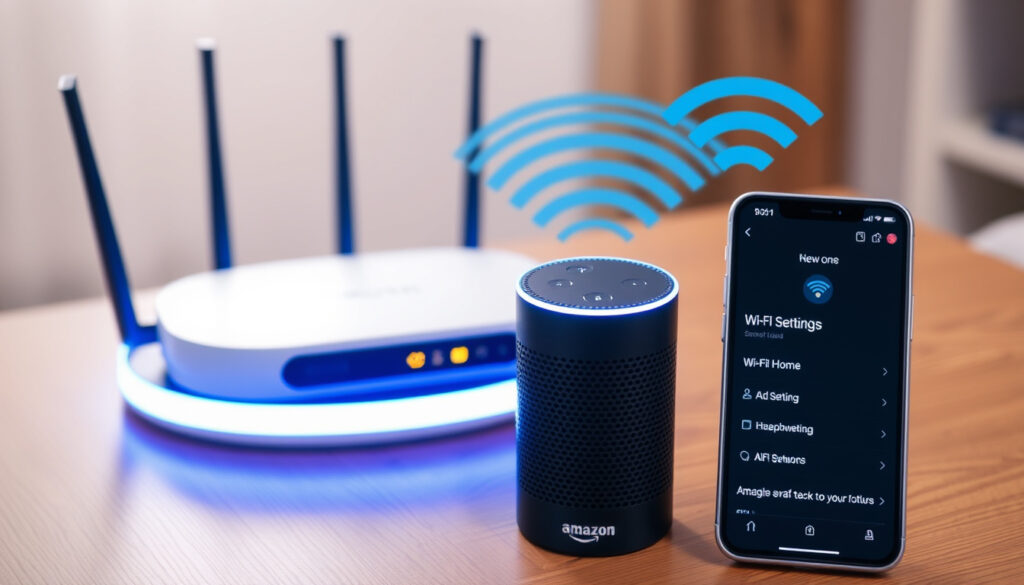
How to Connect Alexa to Wi-Fi: Full Setup & Troubleshooting
Anyone who has watched an Echo’s light ring spin orange while the Wi‑Fi password sits untouched on their phone knows the feeling, and the fix is usually not a mysterious factory reset — it’s a network setting, an outdated app, or a forgotten password change, and Amazon’s own help pages walk you through all three in minutes. By the time you’re done here, you’ll know whether to blame the router or the speaker before you ever hold down the Action button.
Alexa-enabled devices sold worldwide: Over 100 million · Languages Alexa supports: 42 · Skills available for Alexa: Over 100,000 · Wi-Fi standards supported: 802.11 b/g/n (2.4 GHz and 5 GHz)
Quick snapshot
- To change networks, open Devices, select your Echo, then tap Change next to Wi-Fi Network (Amazon Help, official setup documentation).
- Holding the Action button until the ring turns orange puts the Echo into setup mode (CNET, smart home how-to guide).
- Separate 2.4 GHz and 5 GHz network names are a documented cause of connection failures (Amazon Help DE, official regional support).
- Amazon’s “100 million devices sold” figure dates to 2019 and has never been updated.
- Voice shortcuts like “Alexa, change Wi-Fi” are repeated in forums but don’t appear in Amazon’s official setup flow.
- Hotel and dorm Wi-Fi with a login page has no dedicated Echo setup path in official guidance.
- First-time setup, plug-in to connected: 5–10 minutes.
- Setup mode signal: the light ring turns orange and spins.
- If the device stalls mid-setup, the next move is a phone hotspot retry (covered in the setup section below).
- Run a voice test after connecting to confirm the network is live.
- If drop-offs start later, check which network the Echo thinks it’s on before resetting anything.
- Update the Alexa app before changing networks; outdated versions are a documented setup failure point (covered in the setup section below).
Alexa Wi-Fi setup: the facts that matter
Six specs explain most of what goes wrong at setup, and one pattern ties them together: every Echo feature that feels smart depends on a network the app controls.
| Spec | Value |
|---|---|
| Device type | Amazon Echo smart speaker |
| Wi-Fi bands supported | 2.4 GHz and 5 GHz |
| Setup mode signal | Light ring turns orange and spins |
| Bluetooth version | 4.2 or higher |
| Setup time estimate | 5–10 minutes |
| Required for full functionality | Active Wi-Fi connection |
What this means: the Echo is a simple client — it joins whatever network you point it at. The complexity lives in your router’s band settings, not in the speaker.
Why is Alexa not connecting to Wi-Fi?
An Echo that suddenly drops off Wi-Fi rarely announces why. Amazon’s own troubleshooting flow starts with a simple sanity check before anything drastic.
Common Wi-Fi issues and fixes
- Wrong network or stale password. If the Echo keeps failing after a router or password change, verify the correct Wi-Fi network is visible under Wi-Fi Network and tap Change if it isn’t (Amazon Help, Wi-Fi troubleshooting guide).
- A network that isn’t actually up. Test the internet with another device first; if your phone also fails, the router is the problem, not the Echo — and if many devices share the same Wi-Fi, Amazon suggests temporarily switching some of them off (Amazon Help UK, official regional support).
The pattern: connection failures usually split into three buckets — bad credentials, bad range, or bad band configuration.
Checking network compatibility
Many dual-band routers blend 2.4 GHz and 5 GHz into one network name — exactly the configuration Amazon flags as a source of Echo failures (Amazon Help DE, official regional support).
- If your router uses separate names for each band, try moving the Echo from one network to the other and see which one connects cleanly (Amazon Help DE).
- If the Echo is pointed at the wrong network, tap Change and re-enter the password (Amazon Help, Wi-Fi troubleshooting guide).
Resetting the device
- Power-cycle the modem and router, wait 30 seconds for them to come back up, then reboot the Echo (Asurion, device support service).
- If the Echo still won’t join, hold the Action button until the light ring turns orange and spins, then run setup again in the app (the setup-mode signal covered in the snapshot section above).
- Keep in mind that resetting the device clears its saved Wi-Fi networks, so you’ll start setup from scratch.
What this means: most Alexa Wi-Fi failures are home-network problems wearing an Echo-shaped mask. Check the band, the password, and the router before you reset the speaker — the reset almost never fixes a router issue.
The implication: before reaching for the Action button, invest two minutes in checking the router.
How do I set up Alexa?
Setting up a new Echo is a phone-and-speaker routine that takes about as long as a cup of coffee — if the network cooperates.
Step 1: Download the Alexa app
- The initial setup of every Echo runs through the Alexa app on a phone or tablet.
- An outdated app is a documented setup failure point; Amazon says to check that the app is up to date if the Wi-Fi step fails (Amazon Help UK, official regional support).
Step 2: Plug in your Echo device
When the light ring glows orange and spins, the Echo is in setup mode and waiting for the app to feed it your network details — the same signal you’ll look for every time you change Wi-Fi later.
- Plug the Echo into power and give it about a minute to boot; if it doesn’t find a known network, it enters setup mode automatically.
- If the ring never turns orange, unplug the device, wait ten seconds, and plug it back in.
Small detail, big effect: the orange ring is the Echo’s way of saying “I’m ready to be set up.” Skip it and you’ll wonder why the app can’t find the device.
Step 3: Follow app prompts to connect to Wi-Fi
- During setup, select your home Wi-Fi connection from the list of available networks (Tom’s Guide, consumer tech how-to).
- If your network doesn’t appear, use Add a Network for a hidden SSID, or Rescan to refresh the list (Allconnect, broadband and smart home explainer).
- If the connection fails at this step, Amazon’s fallback is retrying setup with your phone as a Wi-Fi hotspot (Amazon Help UK).
How do I reset my Alexa to a different Wi-Fi?
A network change — new router, new apartment, new password — is the most common reason people reset an Echo. You usually don’t need to.
Using the Alexa app to change Wi-Fi
- Open the Alexa app, go to Devices, select your Echo, open Device Settings, then tap Change next to Wi-Fi Network (Amazon Help, official setup documentation).
- CNET’s navigation path is the same flow with different labels: Devices → Echo & Alexa → select the device → Status → Change beside Wi-Fi Network (CNET, smart home how-to guide).
- Enter the new password and tap Connect; the Echo confirms the link with a voice prompt (Gearbrain, consumer tech guide).
Factory reset and re-setup
A factory reset wipes every saved Wi-Fi network on the Echo, so you’ll redo the entire first-time setup. Only reset when the app route can’t fix the connection.
- To start over, hold the Action button until the light ring turns orange, then complete setup again in the app (the setup-mode signal covered in the snapshot section above).
- If the reset process stalls, restart the modem and router first, wait 30 seconds, then reboot the Echo and try again (Asurion, device support service).
Voice reset method
The voice shortcut is faster when it works, but it’s not consistently documented, so it’s the least reliable route on a day the network is already misbehaving.
- Some users report saying “Alexa, change Wi-Fi” or “Alexa, connect to a new network” to push the device into setup mode; this behavior isn’t officially documented across Echo models.
- If the voice route doesn’t respond, wait for the orange light ring and use the app route instead — it works on every generation.
Do you need Wi-Fi for Alexa to work?
Yes — with narrow exceptions, and knowing where the line sits saves you from expecting offline magic.
Core features that require Wi-Fi
- Most Alexa features — answering questions, streaming music, controlling smart home devices — depend on Wi-Fi and a live internet connection.
- An Amazon account is required from the first power-on; the app won’t proceed without one.
- If the Echo stops responding, the fastest diagnostic is checking another device on the same network — if everything else loads fine, the problem is the speaker’s connection, not the internet.
Offline capabilities (Bluetooth, local voice)
- Bluetooth audio keeps working without Wi-Fi: pair your phone directly to the Echo and play music while the internet is down.
- Alarms and timers are among the few features that can run locally without a cloud connection.
- Smart home controls, multi-room audio, and anything that needs a cloud round-trip will fail offline.
Using Alexa with a mobile hotspot
- If the Echo can’t reach your router during setup, turn your phone into a Wi-Fi hotspot and retry setup on that network (the fallback Amazon documents in its setup troubleshooting).
- A hotspot works for occasional voice commands, but it drains your phone’s battery and isn’t a reliable base for smart home routines.
What this means: an Echo without Wi-Fi is a Bluetooth speaker with a timer app. If your network is the weak link, fix the network first — no Echo setting can compensate for it.
Does Alexa automatically connect to Wi-Fi?
Yes, the Echo remembers networks — until the password changes. Then its memory is exactly as useful as a forgotten password.
Auto-connect to remembered networks
- Once an Echo has connected to a network, it stores the credentials and reconnects automatically when it comes back into range.
- That’s what makes power outages and brief router reboots painless — the Echo finds the saved network on its own.
What to do if auto-connect fails
- If the Echo doesn’t reconnect, the first check is the Wi-Fi Network field in Device Settings — the device may be stuck on a saved network that no longer exists (Amazon Help, official setup documentation).
- Power-cycle the modem and router so the network starts cleanly, wait 30 seconds, then reboot the Echo (Asurion, device support service).
- If the password changed on the router, the Echo will keep failing until you update it in the app — auto-connect can’t guess a new password.
Using saved Wi-Fi credentials
- Saved credentials persist across reboots; you only re-enter them when the network changes or the device is reset.
- New router with the same network name and password? The Echo will auto-connect, because it can’t tell the difference.
- Changed either the name or the password? The Echo will fail, and you’re back to the Devices → Device Settings → Change flow (Amazon Help, official setup documentation).
The catch: “it just reconnects” is true only until the router changes. The instant the network name or password shifts, the Echo’s memory is garbage — update it in the app or plan a reset.
The complete Wi-Fi setup sequence
Here’s the six-step version, the one to keep for the next time a router changes.
- Plug in the Echo and wait for the light ring to turn orange and spin — that’s setup mode.
- Open the Alexa app, tap Devices, and select your Echo from the device list.
- Open Device Settings (or the gear icon) and tap Change next to Wi-Fi Network (Amazon Help, official setup documentation).
- Select your home Wi-Fi connection from the list of available networks (Tom’s Guide, consumer tech how-to), or tap Add a Network if the SSID is hidden (Allconnect, broadband and smart home explainer).
- Enter the Wi-Fi password and wait for the Echo’s confirmation voice prompt.
- Ask “Alexa, what’s the weather?” — a working answer means the connection is live.
Why this matters: the same six steps cover first-time setup, a moved router, and a new apartment. Memorize the Change button’s location and you’ll never need a factory reset for a network problem.
What’s confirmed about Alexa and Wi-Fi — and what isn’t
Confirmed facts
- Changing a saved Wi-Fi network is an in-app task: Devices → Device Settings → Change (Amazon Help, official setup documentation).
- Setup mode is signaled by an orange, spinning light ring (CNET, smart home how-to guide).
- Amazon’s official guidance says to keep the Echo within 30 feet (10 meters) of the router (Amazon Help UK, official regional support).
- Asurion’s first fix for an Echo that won’t connect is power-cycling the modem and router, then rebooting the speaker (Asurion, device support service).
What’s unclear
- The voice shortcut “Alexa, change Wi-Fi” is widely repeated but doesn’t appear in Amazon’s official setup documentation.
- Amazon’s “over 100 million devices sold” figure is from 2019 and has never been updated.
- Whether an Echo stays fully functional without an active Wi-Fi connection after initial setup is only partially documented.
- Hotel and dorm Wi-Fi with a login page has no dedicated Echo setup path in official guidance.
- Factory reset behavior — how long to hold the Action button, whether voice reset works — varies by Echo generation and isn’t unified in one Amazon help page.
The balance: far more is verified than not, but the loudest forum “fixes” (voice resets, exact hold times) are exactly the parts Amazon never officially documents.
Setup instructions, straight from the source
Three credible walkthroughs, one shared conclusion: the Change button in the app is the door, and setup mode is the key.
“To connect your Echo device to Wi-Fi, open the Alexa app and select Devices.”
— Amazon Help Center, official setup documentation
“Devices, Echo & Alexa, select the device, Status, then Change beside Wi-Fi Network.”
— CNET, smart home how-to coverage
“Tap on Device Settings. Now tap on the Wi-Fi network you want to connect the Echo to, enter its password, and tap Connect.”
— Gearbrain, consumer tech guide
What this means: for all the forum threads about secret reset tricks, every credible walkthrough points to the same two doors — the app’s Change button or a reset into setup mode. There is no third door.
What this means for your Echo
Alexa’s Wi-Fi failures usually aren’t Amazon’s hardware giving up; they’re a band mismatch, a stale password, or an app that quietly fell behind. An Echo without Wi-Fi becomes a Bluetooth speaker with a timer, which is a poor trade for a device built to answer questions on demand. While you’re clearing the setup backlog, two other guides fit the same troubleshooting mood: Samsung Find My Phone: How to Locate Your Lost Samsung Device and Free PDF to Word Converter: Online & Offline Compared. For anyone moving houses, swapping routers, or changing passwords, the decision is clear: update the network in the Alexa app the day the password changes, or plan on a ten-minute reset later.
amazon.co.uk, amazon.co.uk, amazon.com, eufy.com, pcmag.com, pcmag.com
Frequently asked questions
Can I connect Alexa to a hidden Wi-Fi network?
Yes. When the network list appears during setup, choose Add a Network and type the SSID and password manually (Allconnect, broadband and smart home explainer). This works in the same Devices → Device Settings flow used for visible networks.
Why does my Alexa keep losing Wi-Fi connection?
Amazon’s troubleshooting guidance points to three usual suspects: separate 2.4 GHz and 5 GHz network names, distance from the router, and interference from other electronics (Amazon Help DE, official regional support). Power-cycling the modem and router, then rebooting the Echo, clears most intermittent cases.
How do I update the Wi-Fi password on my Alexa without resetting?
Open the Alexa app, go to Devices, select your Echo, open Device Settings, and tap Change next to Wi-Fi Network (the flow Amazon documents in its setup guide). Enter the new password and tap Connect.
Can Alexa connect to a hotel or public Wi-Fi with a login page?
Not through the standard setup flow. Amazon’s documented fallback for any device that can’t finish setup is to enable your phone’s Wi-Fi hotspot and let the Echo join that network instead (Amazon Help UK, official regional support). A captive-portal login page still has to be handled on a phone or laptop first.
How to connect Alexa to Wi-Fi using WPS?
There is no WPS option in the Alexa app. Amazon’s setup flow connects every Echo by selecting a network and entering its password — there’s no push-button WPS shortcut for Echo devices.
What does the Action button do on Echo devices?
Holding the Action button — the dot in the center — puts the Echo into setup mode; the light ring turns orange and spins when it’s ready to connect (CNET, smart home how-to guide). A long press of the same button is also how most Echo models enter a factory reset.
Is it possible to use Alexa without the app after initial setup?
Daily questions and commands work by voice, but changing Wi-Fi, adding devices, and managing settings all run through the Alexa app. Keep the app installed; you’ll need it the first time the network changes.
More related posts
 Partite di Serie A – 2025/26 Standings, Fixtures, Results
 St Patrick’s Athletic vs Waterford: Match Preview & Prediction
 Athletic Bilbao vs Rangers: Lineups, Highlights & Analysis
 Megan Clarke Love Island: Age, Hometown, and Couple Status
 Connacht vs Munster Tickets 2027: Prices & How to Buy
 RTÉ 2 TV Guide: Channel Number, Schedule & How to Watch
 Cast of 28 Years Later (2025): Full List of Actors & Characters
 GAA on TV This Weekend – Full Schedule, Channels and Streams
