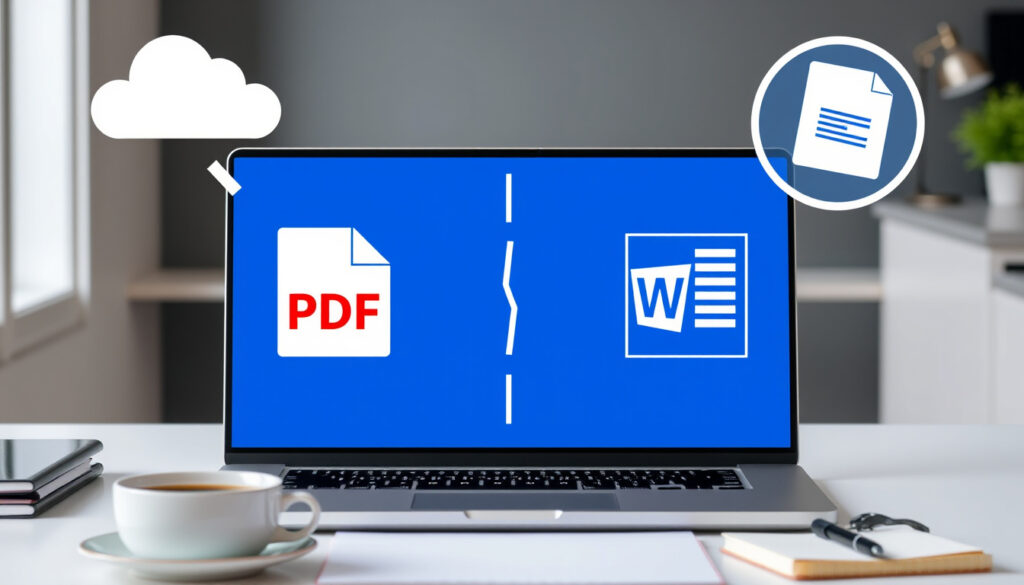
Free PDF to Word Converter: Online & Offline Compared
Every time you need to edit a PDF, the same question pops up: how do I turn this into a Word document without paying? Free converters answer it, but each one forces a trade-off — file size, formatting accuracy, or privacy.
Maximum file size for free online conversion: 100 MB ·
Top free online converters identified: 5 ·
Typical conversion time: Under 30 seconds
Quick snapshot
- Adobe Acrobat online offers free conversion without sign-up (Adobe Acrobat)
- Smallpdf provides a free PDF-to-Word converter with a 25 MB limit (Smallpdf)
- iLovePDF supports free offline conversion with OCR (iLovePDF)
- Microsoft Word can open and convert PDFs natively on desktop (Microsoft Support)
- Expect more offline tools to add OCR and AI-enhanced layout preservation — iLovePDF already offers offline OCR (iLovePDF)
- Privacy regulations may push more converters to offer on-device processing — WPS Office and Xodo already position their desktop apps around offline conversion (WPS Office; Xodo)
The free tiers differ mainly in size limits and sign-up requirements.
| Converter | Free tier details |
|---|---|
| Adobe Acrobat online converter | Free, no account required, max 100 MB |
| Smallpdf | Free, no sign-up, max 25 MB per file |
| iLovePDF | Free, no registration, max 200 MB |
| Microsoft Word (desktop) | Free with Office license, can open PDFs natively |
How can I convert a PDF to Word for free?
- Upload the PDF to an online converter. Choose a free tool like Adobe Acrobat online; no installation is required.
- Select DOCX as output format. Look for “DOCX” or “Word document” in the output options.
- Download the converted file. Grab the download link, or sign in if the tool requires it.
Upload the PDF to an online converter
Online converters require no installation — you just upload a file, choose the output format, and download the result. Adobe Acrobat’s online tool (Adobe Acrobat, the industry standard) automatically converts PDFs into editable Word documents. For most users, the process takes under 30 seconds for a standard document.
Select DOCX as output format
After uploading, select “DOCX” or “Word document” as the target format. FreeConvert (FreeConvert, a straightforward online service) instructs users to choose files, convert to WORD, and then download the result. The same pattern applies to Smallpdf and iLovePDF.
Download the converted file
Once the conversion finishes, the tool provides a download link. Adobe may ask you to sign in to download (Adobe Acrobat), while others like Smallpdf let you grab the file immediately. The trade-off: free online converters often cap file size at 100 MB or less.
The pattern: online converters trade file-size limits and sign-in walls for speed.
Is there a truly free PDF to Word converter?
What “truly free” means: no sign-up, no credit card, no hidden fees
Several reputable converters offer free tiers without requiring registration. Adobe Acrobat online, Smallpdf, iLovePDF, and Nitro all provide free conversion. Nitro (Nitro, a document management platform) presents its browser tool as free online conversion, while its free trial offers 14 days of unlimited access.
Examples of truly free tools: Adobe Acrobat online, Smallpdf, iLovePDF
These tools are free for basic conversion. However, free versions often have file size or page limits. Adobe’s online tool handles up to 100 MB, Smallpdf limits to 25 MB, and iLovePDF allows up to 200 MB. Some tools require a subscription for advanced features like OCR or batch conversion.
What looks free may still ask for an email address or limit you to a few conversions per day. Always check the fine print before uploading sensitive documents.
The pattern: free tiers are real, but they are sized for occasional, low-stakes documents.
What is the best free PDF to Word converter?
Criteria: accuracy, speed, privacy, file size limits
No single “best” fits all needs. For formatting accuracy, Adobe Acrobat (Adobe Acrobat, the industry standard) is widely considered the gold standard. For speed, Smallpdf, a user-friendly online converter, delivers quick results. For privacy, offline tools like Xodo or PDFgear avoid uploading files to servers.
Comparison of Adobe, Smallpdf, iLovePDF, Nitro
Four tools, one pattern: each tool excels in a different area. Adobe leads in accuracy, Smallpdf in ease of use, iLovePDF in file size allowance, and Nitro in its 14-day trial of full features.
The pattern across these tools is that each free tier buys its convenience with a different limitation.
| Converter | Free tier limit | OCR support | Platform |
|---|---|---|---|
| Adobe Acrobat online | 100 MB | Yes (auto) | Web |
| Smallpdf | 25 MB | Yes (with account) | Web, Windows app |
| iLovePDF | 200 MB | Yes (offline) | Web, Desktop app |
| Nitro | 14-day trial unlimited | Yes | Web, Desktop |
| PDFgear | Free offline | Yes | Windows, Mac |
The implication: choose based on your priority. If you need to convert a 150 MB scanned document, iLovePDF’s 200 MB limit and offline OCR are the best match. For occasional small files, Smallpdf’s no-sign-up approach is hard to beat.
How to convert PDF to Word for free offline?
Using Microsoft Word’s built-in PDF opener
Microsoft Word (Microsoft Support) can open a PDF and convert it to Word format natively — no internet required. This is free with a valid Office license. However, it does not support OCR for scanned images and may struggle with complex layouts.
Downloading desktop software like LibreOffice
LibreOffice (LibreOffice, a free open-source office suite) is a fully free offline alternative. It can open and export PDFs to Word format. According to PDFgear’s comparison (PDFgear, a dedicated offline converter), LibreOffice offers weaker OCR and formatting performance than dedicated tools but remains a solid zero-cost option.
Using offline converter apps
Several tools offer dedicated offline applications. WPS Office, a free office suite, provides a step-by-step offline PDF-to-Word workflow. iLovePDF’s Desktop App, a widely used platform, can convert offline with OCR for scanned documents. Xodo, a cross-platform PDF editor, markets its PDF Studio desktop converter as accurate for offline use on Windows, Mac, and Linux.
Offline conversion eliminates the privacy risk of uploading your documents to a third-party server. For sensitive files (contracts, medical records, financial statements), an offline tool is the safer choice — even if it means sacrificing a bit of convenience.
Upsides
- No internet required — works anywhere
- Better privacy — files stay on your device
- No file size limits (depends on device)
- Often free and open source (e.g., LibreOffice)
Downsides
- Some tools are ad-supported
- Limited feature set compared to paid versions
- No OCR for scanned PDFs in basic tools
- Installation required on each device
The pattern: offline tools trade setup effort for privacy, and for sensitive files that trade is usually worth it.
Why can’t I convert a PDF to Word?
Scanned PDFs require OCR
Scanned PDFs are essentially images. Without OCR (Optical Character Recognition), the text is not selectable or editable. iLovePDF, a widely used platform, explains that OCR can recognize text inside images during offline conversion. Most free online converters include OCR, but it may require a paid upgrade for high accuracy.
Corrupted or password-protected files
Some free converters cannot handle encrypted PDFs. If the file is password-protected, try removing the password first using a dedicated PDF tool, or use a desktop tool like Adobe Acrobat Pro which can open encrypted files.
Formatting issues with complex layouts
Table-heavy documents, multi-column layouts, and embedded fonts often lose structure during conversion. According to PDFgear, a dedicated offline converter, no free converter preserves complex formatting perfectly. The trade-off: you may need to do manual cleanup after conversion.
If you are converting a scanned PDF with multiple columns, expect to spend 10–15 minutes fixing the Word output. Dedicated OCR tools like Adobe Acrobat Pro handle this better, but they require a subscription.
The pattern: conversion failures usually trace back to OCR, encryption, or layout complexity rather than the converter itself.
What experts say
“Convert PDF to Word online for free — no sign-up, credit card, or installation required.”
— Adobe Acrobat (Adobe Acrobat, the industry standard)
“Free PDF to Word converter — keep fonts, formatting, and layouts intact.”
— Smallpdf (Smallpdf, a user-friendly online converter)
“PDF Candy Desktop lets Windows users turn PDF to Word offline.”
— PDF Candy (PDF Candy, a free online toolset)
For anyone regularly converting PDFs to Word, the choice between online and offline tools comes down to a single trade-off: convenience vs. control. Online converters are fast and require no installation, but they upload your files to a server. Offline converters keep your data local but may lack the polish of cloud-based tools. If you handle sensitive documents — contracts, personal records, or proprietary data — an offline tool like iLovePDF Desktop or Xodo PDF Studio is the pragmatic pick. For quick, one-off conversions of non-sensitive files, Adobe Acrobat online or Smallpdf will get the job done in seconds. Pick Smallpdf for speed, iLovePDF for file-size headroom, and Xodo PDF Studio for privacy.
Frequently asked questions
Does Microsoft Word convert PDF to Word for free?
Yes, Microsoft Word can open PDFs and convert them to Word format. This is free if you have a valid Office license. However, the conversion has limitations — it does not support OCR for scanned documents and may lose some formatting.
Can I convert a PDF to Word without losing formatting?
No free converter preserves complex formatting perfectly. Tables, multi-column layouts, and embedded fonts often shift. Adobe Acrobat online and Smallpdf do the best job for simple layouts, but manual cleanup is usually needed.
Is it safe to use free online PDF converters?
It depends on the document. For sensitive files, use an offline converter or a tool that processes files on your device. Reputable online converters like Adobe and Smallpdf delete files from their servers after a few hours, but the risk remains.
What is the best AI for PDF to Word conversion?
There is no clear consensus. Adobe Acrobat uses advanced AI for layout preservation, and tools like Smallpdf and iLovePDF also employ AI. Independent benchmarks are scarce, so try a few on a test file before committing.
How to convert a scanned PDF to Word for free?
Use an online tool with OCR, such as iLovePDF (200 MB limit) or Adobe Acrobat online. For offline conversion, iLovePDF Desktop and PDFgear support OCR. Note that free OCR is often less accurate on complex layouts.
What file size limit do free converters have?
Limits vary: Smallpdf caps at 25 MB, Adobe Acrobat online at 100 MB, and iLovePDF at 200 MB. Offline tools generally have no size limit, but conversion time increases with file size.
If you are looking for related tools, check out Transcribe Audio to Text: Free Tools & AI Compared and YouTube to MP3 Converter: Free, Safe & Legal Guide — two more free conversion guides.
More related posts
 Cast of Wicked: For Good: Full List, Dorothy & Key Roles
 Good Morning in French: Bonjour, Bonsoir & Greetings
 Stena Line Holyhead to Dublin: Schedules, Duration & Documents
 Irish Open Golf 2025: Winner, Prize Money, Tee Times & TV
 Leprino Foods Company Laois Factory Closure: Causes & Impact
 Who Won Ballon d’Or 2025 – Dembélé’s PSG Champions League Triumph
 Cast of 1923 (TV Series): Complete Guide to Actors and Characters
 Woman Shot by ICE: Minneapolis Fatal Incident Facts and Investigation
